 Direct Shot
Skip the
Camera Roll.
Send your photos and videos straight to iCloud, Google Drive, and Dropbox... never to your Camera Roll.
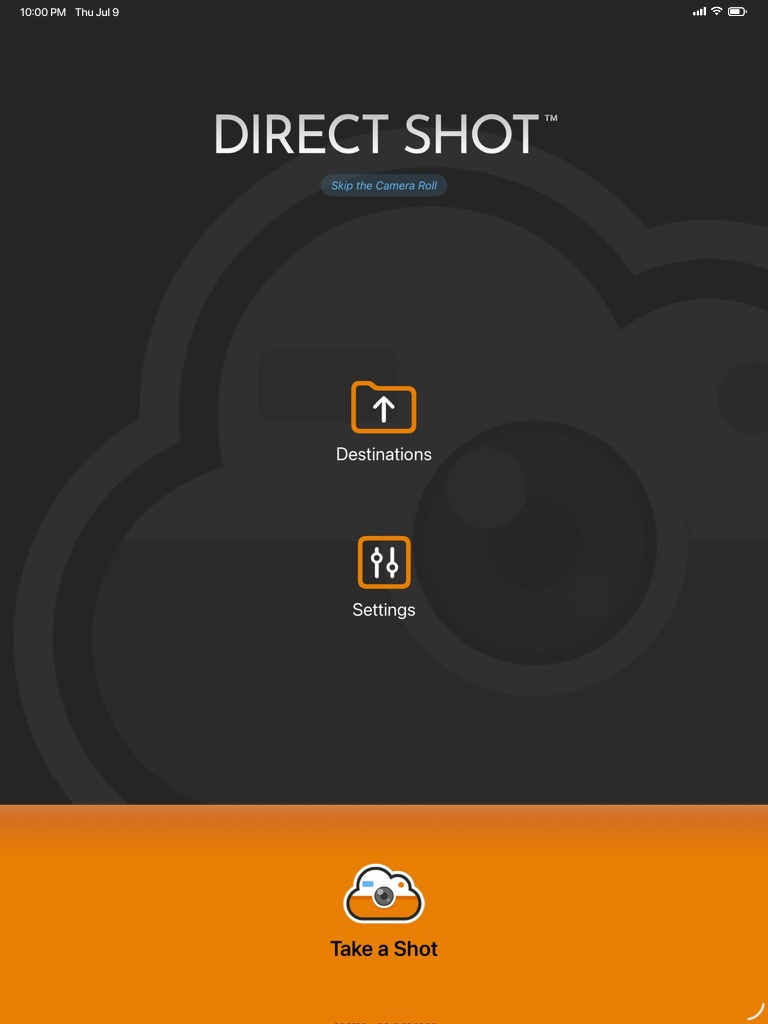
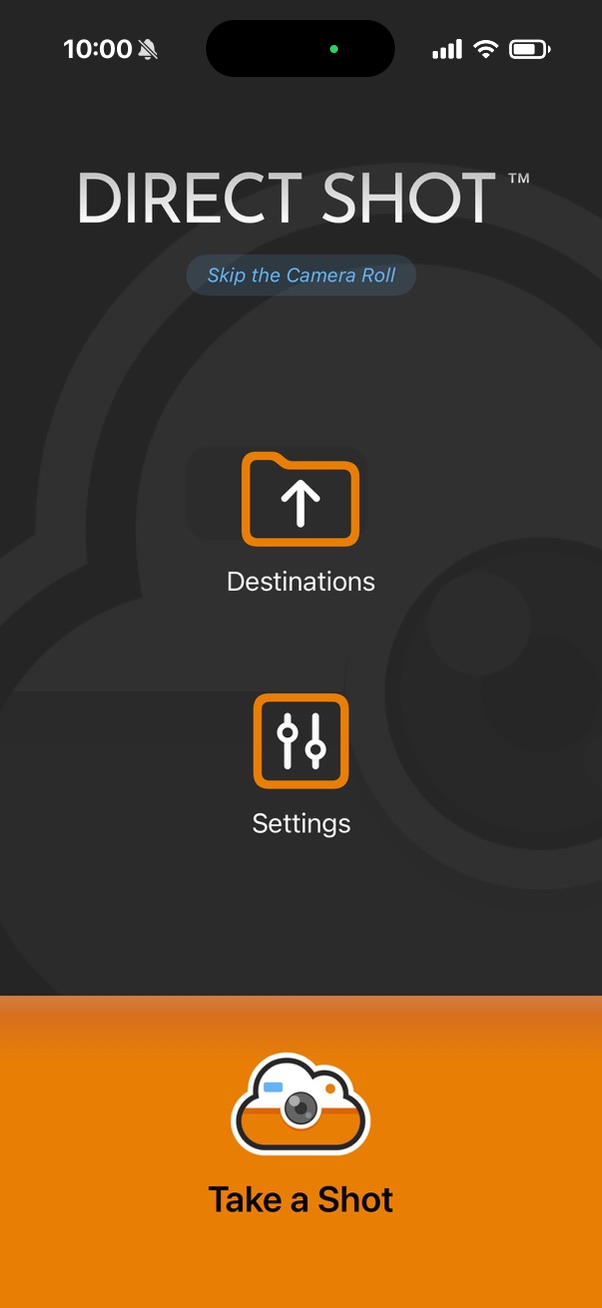
 Saved to iCloud
Your camera, pointed straight at the cloud.
Direct Shot turns your iPhone or iPad camera into an archiving tool. Pick where a shot should live, take it, and it's filed there automatically and never touches your Camera Roll.
Three taps from camera to cloud.
Open the camera and shoot
Open the Direct Shot camera and take your photo or video.
Pick your destination
Choose where it goes. Any folder across your connected services works: iCloud, Google Drive, or Dropbox.
It's filed automatically
Your media uploads straight to that folder and is never added to your Camera Roll.
Photos that name themselves.
On iPhone and iPad models that support Apple Intelligence, Direct Shot names each photo by what's actually in it, so your archive stays searchable in your cloud service by filename alone... often the only thing there is to search.
DirectShot-20260818-143022-a1b2c3.heic
receipt-best-buy-20260818-a1b2c3.heic
It never leaves your device
The naming runs entirely on your device. There's no account, no server in the path, and nothing about your photo is sent anywhere.
A send can take a few seconds longer
Working out a name takes a moment. You can switch smart names off at any time in Settings.
Requires Apple Intelligence
Smart names need iOS 27 or iPadOS 27 on an iPhone or iPad that supports Apple Intelligence. On every other iPhone and iPad, files use the date and time exactly as before.
It never holds up a send
If a name can't be worked out, the file quietly keeps its date-and-time name and uploads exactly as it always has.
A closer look at key screens.
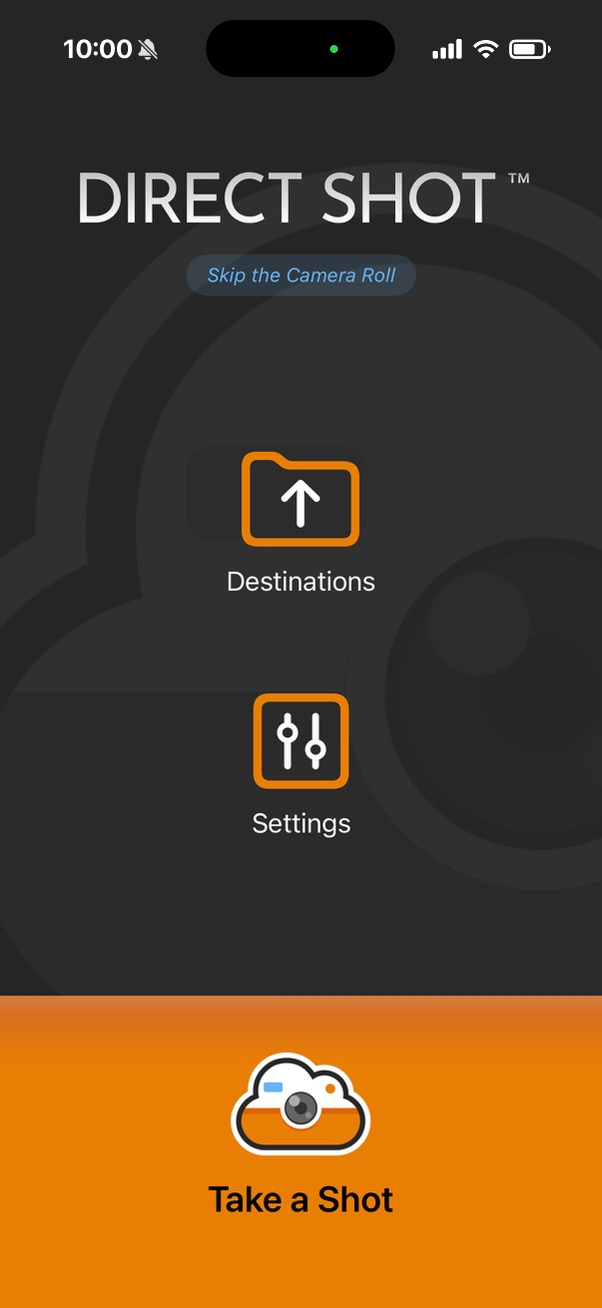
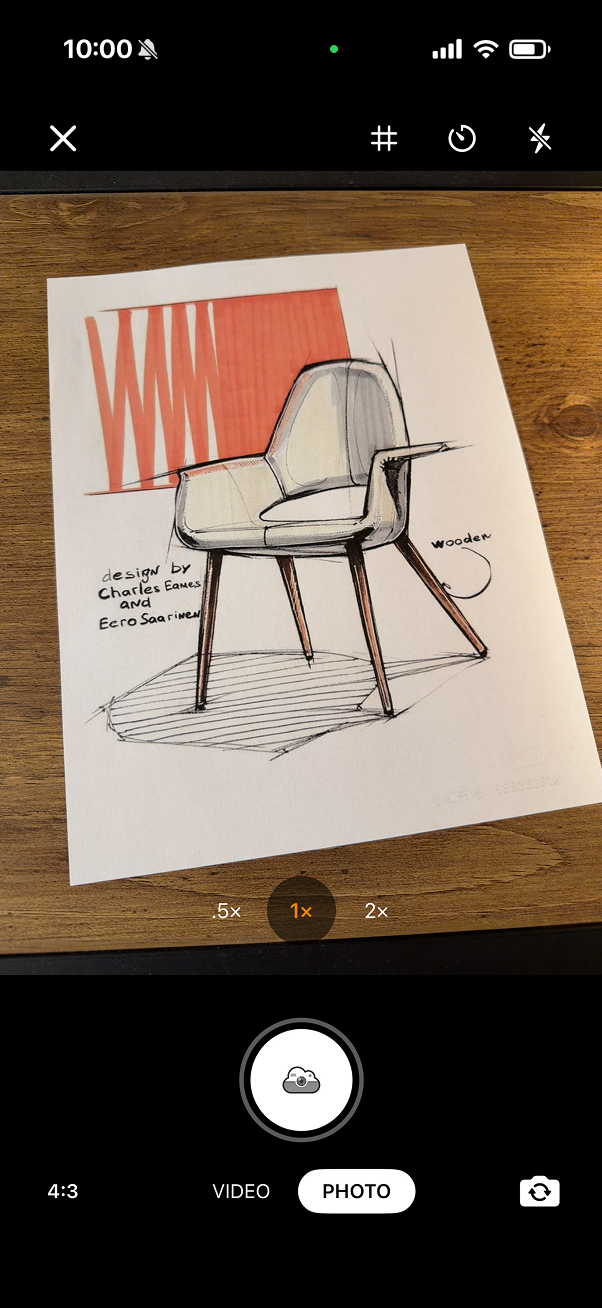
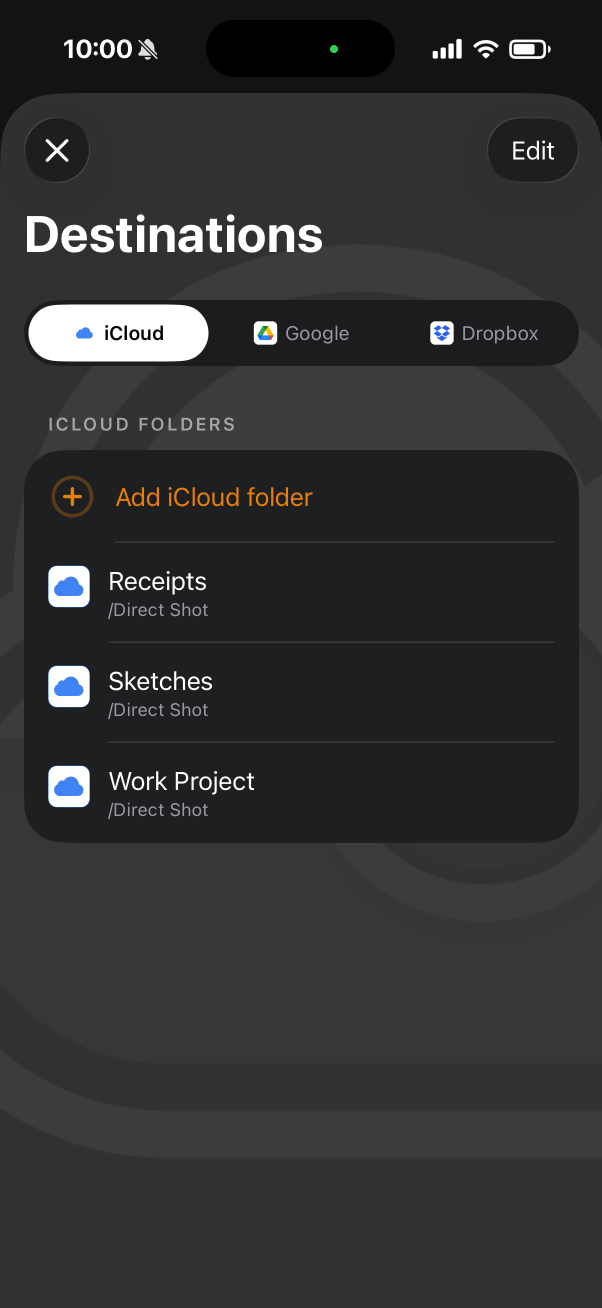
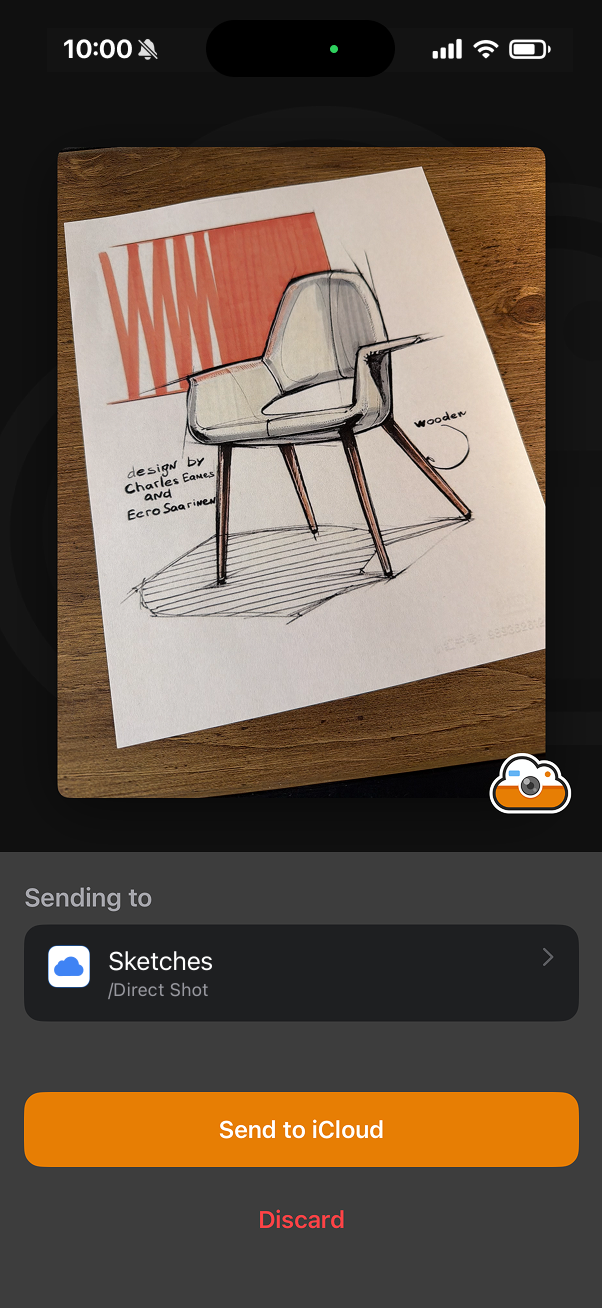
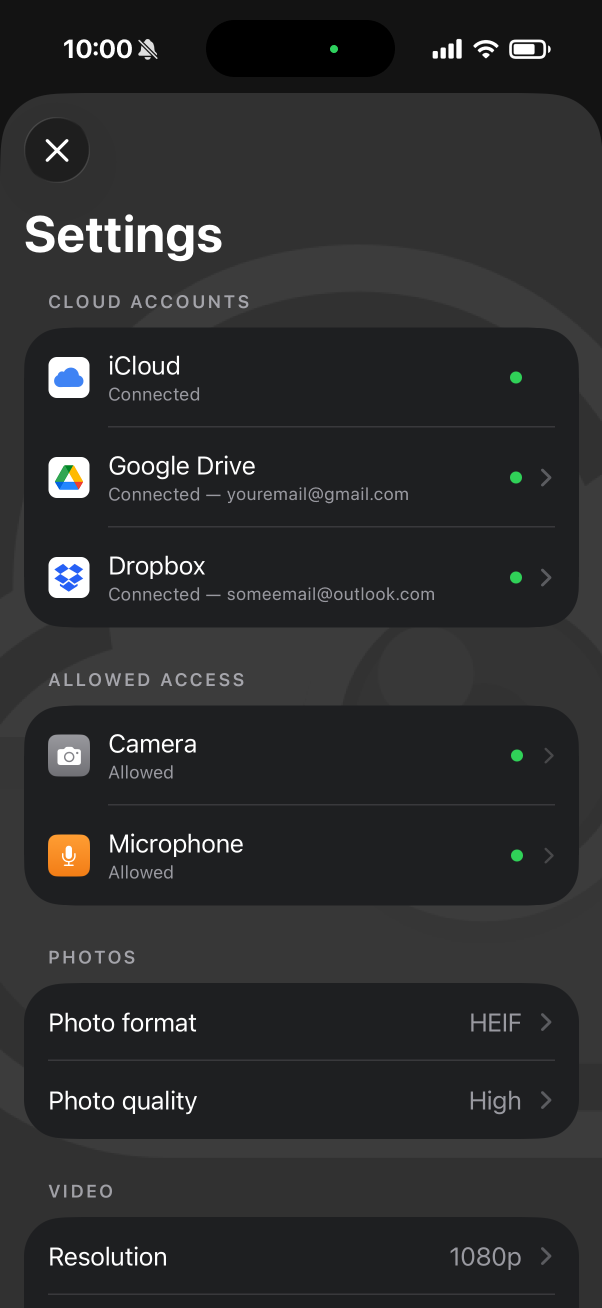
iCloud is on us. Add the rest once.
iCloud is included free. Unlock Google Drive and Dropbox with a single optional in-app purchase. One purchase covers both, and any services we add later are included for you.
iCloud
Built in. Send straight to your iCloud Drive folders, with offline support.
Included free
Google Drive
Send to your Drive folders, organized exactly how you want.
Optional upgrade
Dropbox
Send to your Dropbox folders for instant team access.
Optional upgradeAnyone who shoots to remember, not to share.
Designers & Developers
Sketches, post-it notes, whiteboards, magazines.
Teachers & Students
Assignments, notes, whiteboards, project elements.
Business Travelers
Receipts, expenses, rental-car info, directions.
Photographers & Videographers
Layouts, locations, lighting tests.
Contractors & Plumbers
Receipts, wiring, replacement parts, specs.
Insurance Adjusters
Accident photos, damage detail, claim information.
Built to capture, not to clutter.
Home & Lock Screen widgets
See your current destination and launch the camera in one tap.
A real camera
Multiple zoom levels, aspect ratios, front and rear cameras, portrait and landscape, a built-in timer, and flash.
Quality on your terms
Photo and video format and file size, tuned to your device's camera.
Siri & Shortcuts
Ask Siri to open the Direct Shot camera, or build a shortcut that opens it already pointed at a folder. Your destinations show up in Spotlight too.
Works offline
iCloud uploads the moment your connection is back. (Google Drive and Dropbox need a connection.)
Good questions, answered.
Start shooting straight to the cloud.
Free to download for iPhone and iPad, with iCloud included. Add Google Drive and Dropbox whenever you're ready.
Download on the App Store